The Ballot
Table of contents
- Opening the Ballot
- What the Ballot Contains
- Filling the Ballot
- Who Enters the Scores
- Team Totals and Ranking
- Adjudicator Discussion
- For Debaters: Reviewing Your Scores and Feedback
- For Adjudicators: Revisiting a Finished Debate
Adjudicators record the result of a debate on a ballot. The ballot is a side drawer that an adjudicator opens from the Ballot button in the control bar of the Evaluation Room or the Adjudicator Room. Debaters do not see it.
The ballot holds two kinds of entry:
- One score per debater. The Chair enters it. It is the debate’s public result: it feeds the team totals, the team ranking, and every debater’s scoresheet.
- Written feedback. Every adjudicator writes their own, for whichever debaters they choose. A debater sees only the feedback written for them.
Opening the Ballot
The Ballot button appears in the control bar during the Evaluation stage. Click it and the drawer slides in from the bottom of the screen.
The ballot is not available during the Debate stage — scores are entered once the speeches are over.
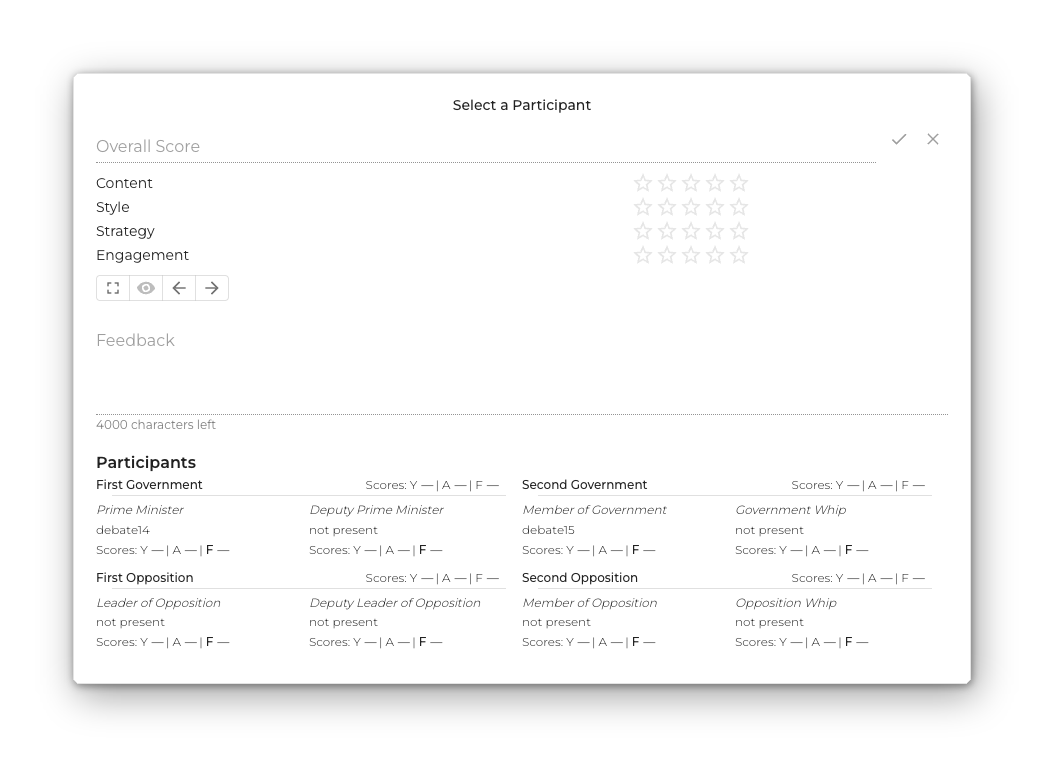
If you open the drawer before picking a participant, the heading reads Select a Participant and the fields stay disabled. Click any role in the Participants list at the bottom of the drawer to load that debater — the heading changes to Ballot – username, with the role (e.g. Prime Minister) shown underneath.
What the Ballot Contains
| Field | What it is |
|---|---|
| Score | A numeric mark of up to two digits for the selected debater. Editable by the Chair only; every other adjudicator sees it as read-only text. |
| Text feedback | Free-form notes for the debater. Supports basic Markdown, with an expand button for a larger editor and a preview toggle. Each adjudicator writes their own. |
| Participants | The eight roles grouped by team, each showing the debater’s name and their score, with a per-team total and the team’s rank. |
Empty seats show not present — the list adapts to whoever actually took part.
Filling the Ballot
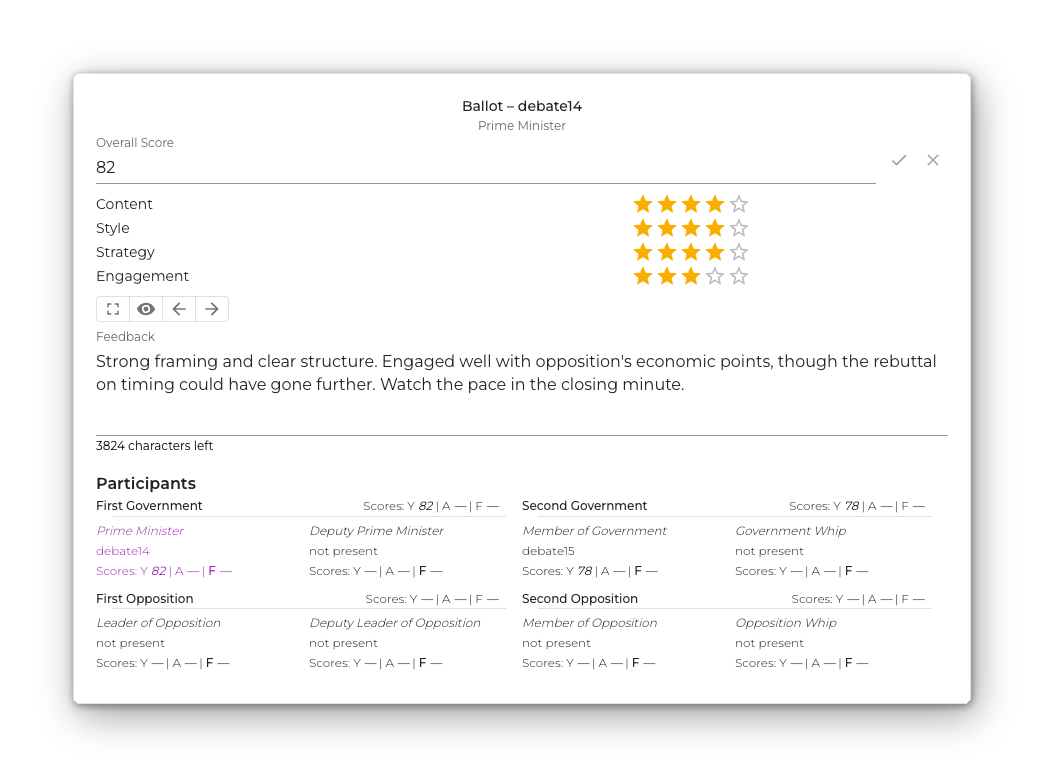
- Pick a debater from the Participants list, or use the previous / next arrows under the text-feedback editor to step through the debaters in speaking order.
- If you are the Chair, type the Score.
- Write your text feedback. Use the expand button for a roomier editor; toggle preview to render the Markdown.
Everything saves automatically when you leave a field, switch participants, or close the drawer — there is no save button. Re-open the ballot for the same debater at any time and your values come back as you left them.
Who Enters the Scores
Only the Chair can enter scores. The Chair types one mark per debater, and every other adjudicator on the panel sees that mark appear in their own ballot straight away — the score is shared across the panel as it is entered, not held back until the end.
Wing, trainee, and shadow adjudicators cannot change a score. The field is shown to them as plain read-only text rather than a greyed-out control, because for them the score is information, not something to act on. They can still write and edit their own text feedback for every debater.
Team Totals and Ranking
Each team header shows a Score — the team total, the sum of its two speakers’ scores. A dash (—) means at least one of that team’s speakers has no score yet.
Once the round has been ranked, each team header also shows its Rank (1st / 2nd / 3rd / 4th). Ranks are derived from the totals; there is no separate ranking control, and the Rank simply isn’t shown until it exists.
No two teams may tie
British Parliamentary rules do not allow two teams to finish on the same total. If a score would put two fully-scored teams on an identical total, it is rejected and the field shows:
Two teams would tie on total — adjust the score.
Adjust one of the marks so the four totals are distinct.
Adjudicator Discussion
The panel normally agrees the marks and the ranking before the Chair enters them. Click Discuss in the Evaluation Room’s control bar to move to the private Adjudicator Room; click Return to come back. The Ballot drawer is available in the Adjudicator Room too, so you can refer to the scores while you talk.
The discussion itself is not recorded by the platform — its outcome is what the Chair types into the ballot.
For Debaters: Reviewing Your Scores and Feedback
After a debate ends it appears at the top of your home page under Your recent debates. Each entry is a collapsible card holding everything the adjudicators recorded for you.
The card at a glance
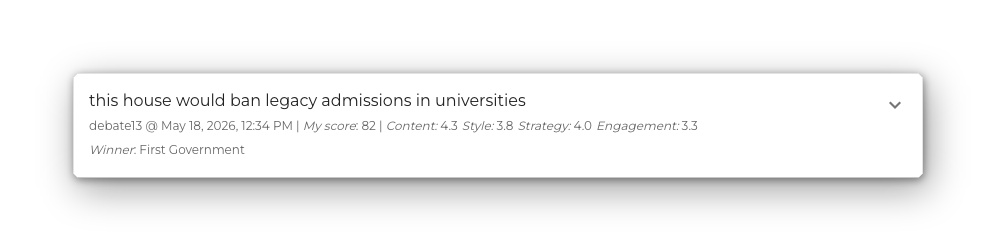
The collapsed card shows the motion, and under it four lines:
- When and who — the date and time, whether the debate was invite-only or an Open Debate, the Organizer, the Chair, and your own Role.
- Ranks — all four finishing positions with each team’s total, e.g. 1: OG / 150 · 2: OO / 143 · 3: CG / 139 · 4: CO / 131. The team ranked first won the round, and your own team is shown in bold. A dash stands in for a position nothing has been ranked into yet, or for a team whose total is not available.
- Your score — your mark for the round, as entered by the Chair, followed by the per-criterion ratings Evidence, Clarity, Strategy and Engagement. Each is a whole number from 1 to 5 (shown with one decimal, so a 3 reads as 3.0), read relative to your own level, where 3 means “as expected for you” — see How the AI Evaluation Works. The ratings and the AI evaluation link beside them appear only for debates that had an AI adjudicator.
- Rate us on this debate — a star rating and a feedback link for telling the debate.club team how the round went, both described below. This line appears once the debate has finished.
While the debate is still being evaluated the Ranks line is left out altogether and the score line is replaced by Evaluating · results by 14:30. The card fills itself in once the results land. See AI Adjudicators.
Rating us on the debate
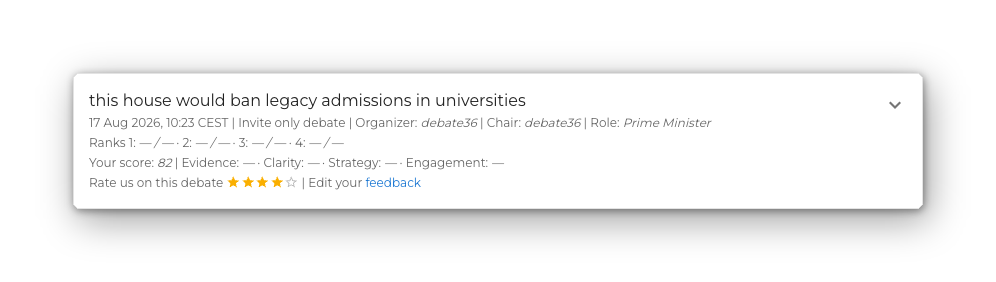
The last line of a finished debate’s card, Rate us on this debate, is where you tell the debate.club team how the round went on the platform. It is not about how you debated — the rest of the card is the adjudicators’ verdict on that.
Everyone who took part sees the line, debaters and adjudicators alike. A debate that is still running shows a Join button instead, and a debate that was created but never started has no rating line at all.
Click a star to rate us out of five. There are no half stars and no confirmation step: the rating is saved the moment you click. Click a different star to change your mind, or click the star you already chose to clear the rating altogether.
The other participants never see your rating — not the organizer, not your team, not the adjudicators.
If the rating cannot be saved, the stars go back to what they were and a message appears at the bottom of the screen:
Could not save your rating. Please try again.
Sending us your feedback
The same line ends with a link. Only the word feedback is clickable; the words in front of it read Send us your feedback until you have written something, and Edit your feedback afterwards.
Clicking it opens the How did we do? dialog:
This goes to the debate.club team, not to the other participants. Tell us how the debate went — what worked, what got in the way, and anything we should improve.
The box takes Markdown — bold, italics, headings, lists and links all work. The eye icon previews the note as it will be rendered; the expand icon gives you a larger editor; a counter under the box shows how many of the 4000 characters are left. SAVE sends the note, CANCEL discards whatever you typed since opening the dialog, and saving an empty box withdraws what you had sent.
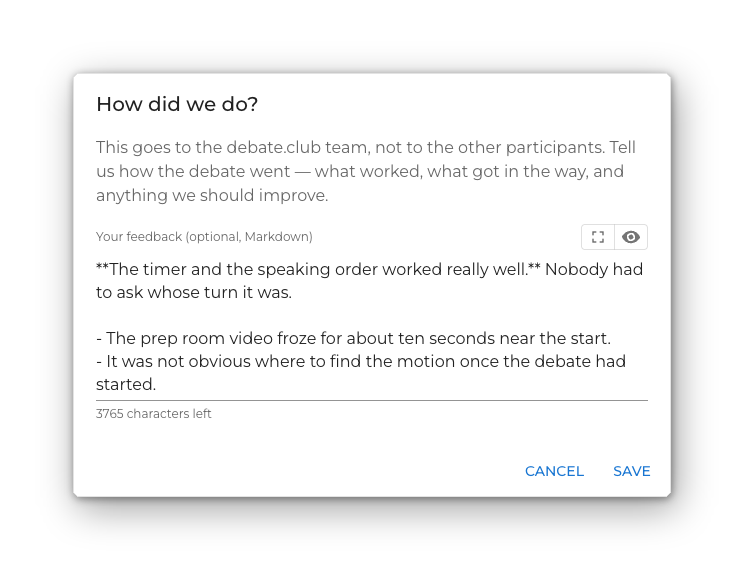
You can come back and edit it at any time. It is a different thing from the written feedback an adjudicator leaves for you: that is about your speech and is written for you, while this is about the debate and is written for us.
Expanding for the full picture
Click the chevron at the top-right of the card (show more) to expand it. The expanded view adds:
- Participants — every role with the debater’s name and their score. Team headers show the team total and the team’s rank in the round.
- Adjudicators — the panel that adjudicated the round, each tagged with their seat: (C) chair, (W) wing, (T) trainee, (S) shadow.
- The total Duration of the debate and the time spent in each stage (Lobby / Prepare / Debate / Evaluate), and the debate identifier.
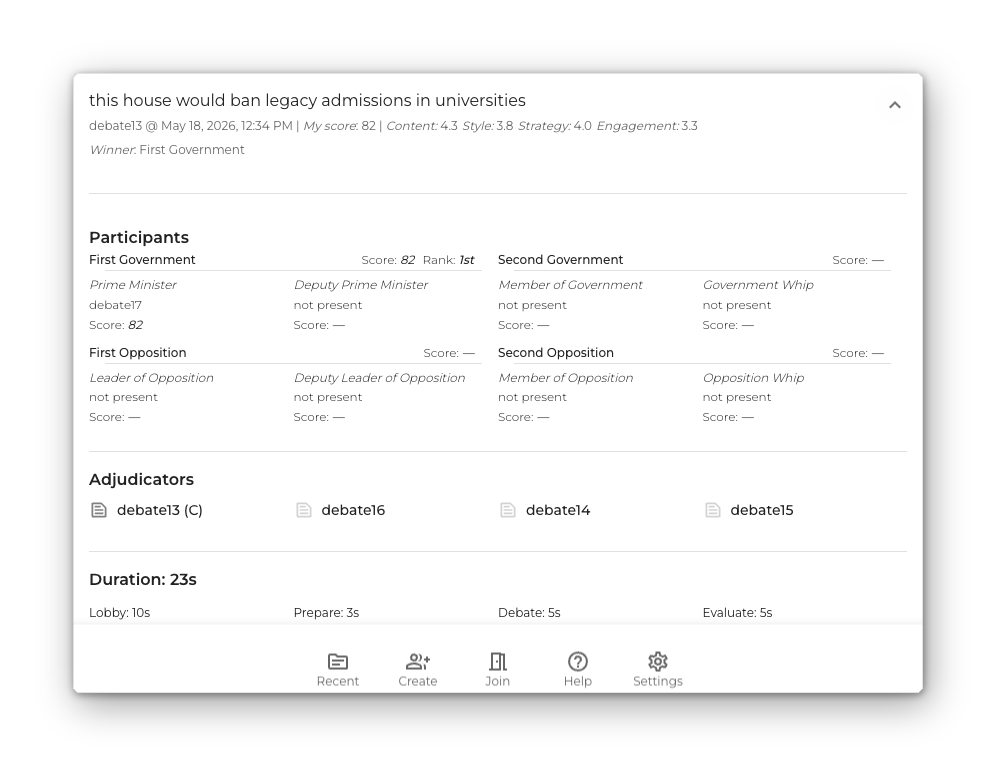
Each adjudicator’s row has a small page icon next to their name. A solid grey icon means that adjudicator left written feedback for you; a light-grey icon means they did not. Only the rows with a solid icon are clickable.
Reading written feedback
Click any adjudicator with a solid icon to open the Written feedback dialog. The note renders as Markdown — bold, italics, headings, lists, and links all work. Use CLOSE to dismiss the dialog and pick another adjudicator if more than one left you notes.
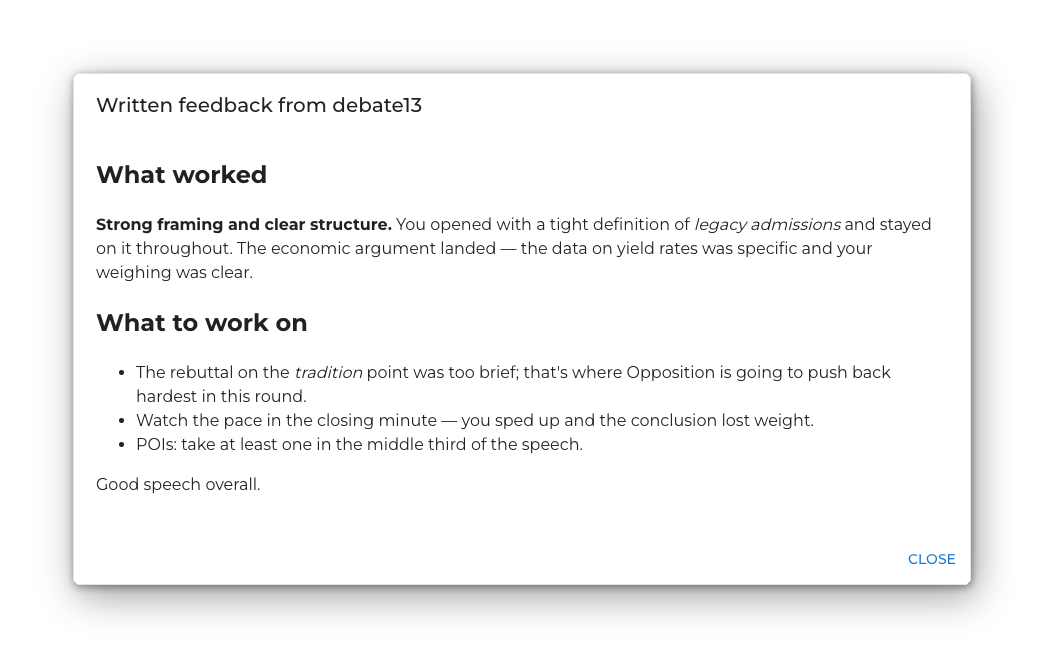
You only ever see the text feedback an adjudicator wrote for you specifically. Notes the same adjudicator wrote about other debaters in the round are not shown to you.
Two different things share the word “feedback” here. What an adjudicator writes is about your speech and is written for you; what you write from the rating line is about the debate and goes to the debate.club team.
For Adjudicators: Revisiting a Finished Debate
Adjudicators get one extra affordance on the same expanded card: clicking a role in the Participants list re-opens that debater’s ballot in review mode. Scores are read-only there — the round is over — but you can still add or revise your own written feedback for any debater.
Adjudicators also get the rating line on their own card, on the same terms as everyone else who took part — see Rating us on the debate.