Managing Audio and Video
Your own microphone and camera are controlled from the Meeting Navigation Bar (the Start / Stop and Mute / Unmute buttons). This page covers the controls for other participants:
- Anyone can pause a participant’s audio or video for themselves only.
- Adjudicators (chair or wing) can mute or force-mute a participant for the whole room.
Table of contents
- Opening the controls
- Pausing a participant for yourself
- Muting and force-muting (adjudicators)
- Notifications
- When you have been force-muted
Opening the controls
The controls live in a small overlay that appears over a participant’s badge. Open it by:
- Desktop — right-click the participant’s badge.
- Mobile / touch — press and hold the badge.
You can’t open the overlay on your own badge — use the navigation bar for your own microphone and camera.
When the overlay opens, a dark panel covers the badge with two large buttons:
| Button | Controls |
|---|---|
| Camera (left) | The participant’s video |
| Microphone (right) | The participant’s audio |
A third button with a red warning triangle sits beside them — that is the report control, described in Reporting a Participant.
Adjudicators also see a small coloured square in the bottom-right corner of each large button — these are the mute controls described below.
Nothing you change in the overlay takes effect until you confirm it:
- ✓ (apply) — apply your changes. The tick is greyed out until you have actually changed something.
- ✕ (cancel) — close the overlay and discard your changes. Pressing Esc or clicking outside the overlay does the same.
Pausing a participant for yourself
Available to everyone, in every room.
Click the large camera or microphone button to pause that participant’s video or audio, then press ✓. The icon shows the current choice — a plain microphone/camera when active, a crossed-out icon when paused.
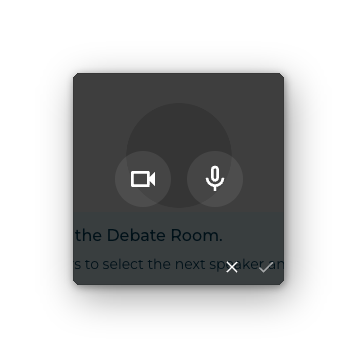
A pause is local to you only:
- It stops your device from receiving that participant’s audio or video.
- Everyone else still sees and hears the participant normally.
- The participant is not notified and is not muted for the room.
A local pause is sticky: it stays in effect even if the participant leaves and rejoins, or turns their own camera off and on again. To undo it, open the overlay again, click the same button to un-pause, and press ✓.
Muting and force-muting (adjudicators)
The small coloured square on each large button is the mute control. It is visible only to chair and wing adjudicators, and only after the Lobby stage (it does not appear in the Lobby).
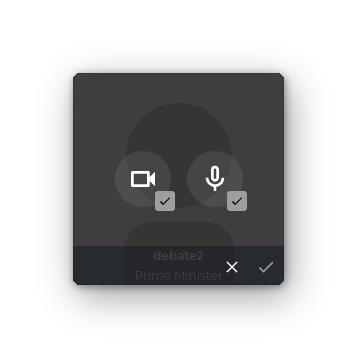
Each click cycles the square through these states; press ✓ to apply the one you’ve landed on:
| Square | Meaning | Effect on the participant |
|---|---|---|
| Grey ✓ | No restriction | The participant controls their own microphone/camera. |
| Yellow ✕ | Mute (soft) | The participant is muted, but can turn it back on themselves from their navigation bar. |
| Red ✕ | Force-mute (hard) | The participant is muted and cannot turn it back on until an adjudicator releases it. |
Notes on the cycle:
- The square starts grey normally, or red if the participant is already force-muted. It never starts on yellow.
- The soft Mute (yellow) step only appears when the participant currently has that microphone or camera on. If they don’t, the square cycles straight between grey and red (force-mute).
Releasing a force-mute
To lift a force-mute, open the overlay on that participant, click the red square so it returns to grey, and press ✓. The participant can then turn their microphone or camera back on.
Force-mute indicators
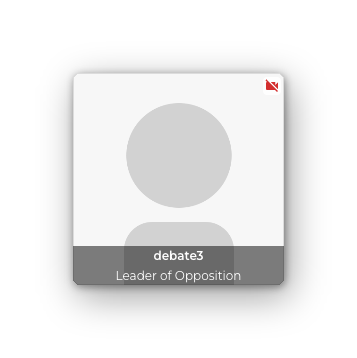
While a force-mute is in effect, a red crossed-out microphone or camera icon appears in the top-right corner of the participant’s badge. This indicator is visible to everyone in the room, so all participants can see at a glance who has been force-muted. If both audio and video are force-muted, the icons stack, oldest first.
Notifications
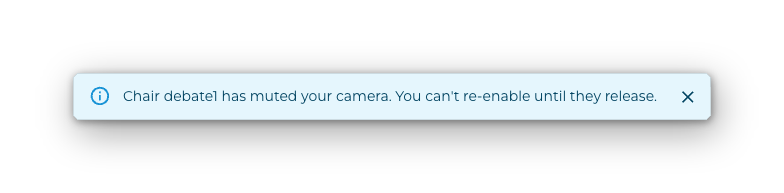
Every mute, force-mute, and release shows a brief message at the top of the screen to everyone in the room, so the whole room stays aware of who was muted and by whom.
When you have been force-muted
If an adjudicator force-mutes you, the matching button in your navigation bar (Mute / Unmute for audio, Start / Stop for video) turns grey and becomes inactive, with a tooltip explaining that an adjudicator has muted you.
You can’t re-enable that microphone or camera — not even by leaving and rejoining the debate — until an adjudicator releases the force-mute. A plain (soft) mute does not lock the button: you can turn yourself back on at any time.